Using Frames in the Certificall Application
When you create a case, you face two possible scenarios, depending on the composition of your frame.
1. Frame with Multiple Steps
If your frame, detailed in the *frame section, is composed of multiple steps (description, photo, and other form components), you will see a listing of each action to perform to compose your case.

Procedure:
-
Complete Each Action:
- Click on each action to fill it in.
-
For Photos:
- Take a photo.
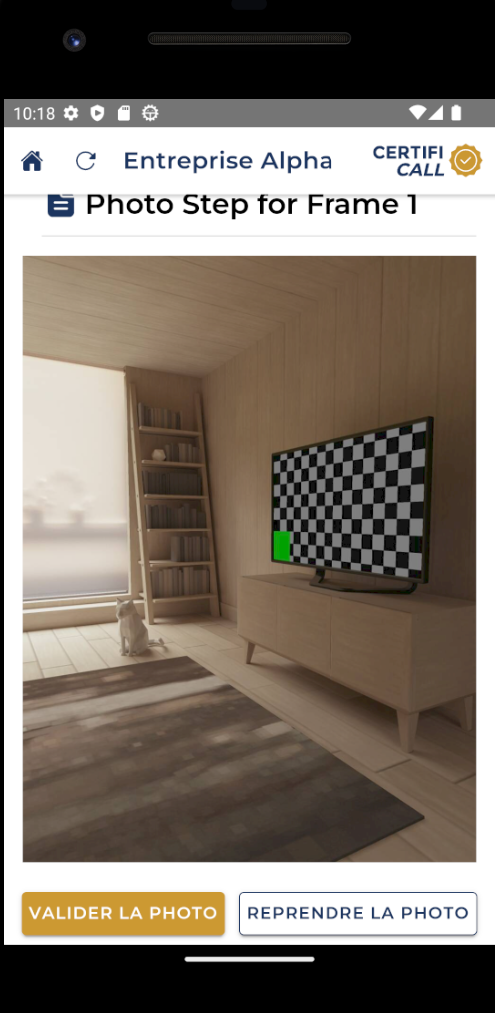
- After taking the photo, you will be redirected to a validation page. At this stage, the photo is timestamped, but the certificate has not yet been created.
- To validate the photo and create the certificate, click "Validate the photo".
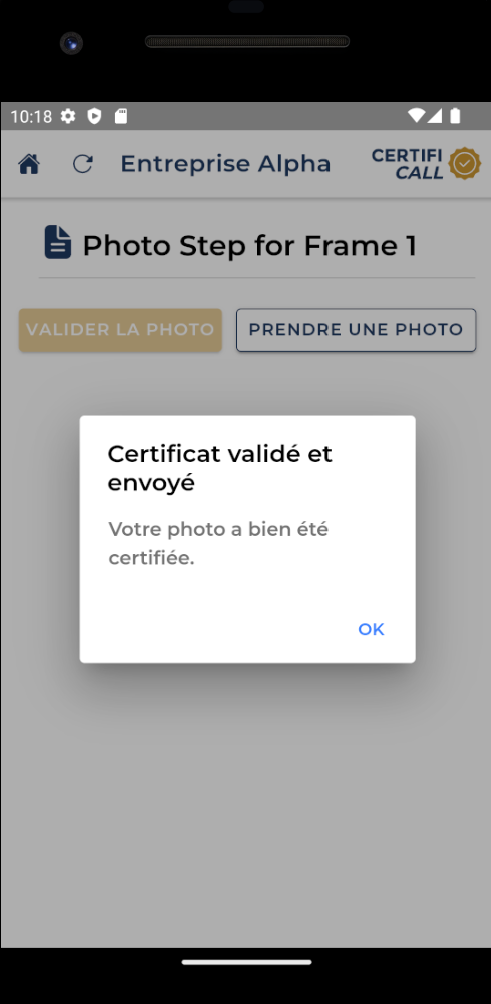
- If you press the button, the certificate will be created and stored on our servers.
-
Complete All Actions:
- Complete all required actions in the frame.
-
Case Validation:
- Once all steps are completed, click "Validate the case".
- By doing this, a global certificate, including all submitted information (including multiple timestamped photo certificates), will be created and sent by email to your address or your company's address. It will also be accessible via the Certificall administration interface.
2. Frame Composed Only of Photography
If your frame, explained in *frame, only includes photo taking, you will be directly redirected to the application's camera.
Procedure:
-
Take a Photo:
- Take a photo.
-
Photo Validation:
- After taking the photo, you will be redirected to a validation page.
- At this stage, the photo is timestamped, but the certificate has not yet been created.
- To create the certificate, click "Validate the photo".
- If you click the button, the certificate will be created and sent directly to your mailbox (if email reception is configured). Otherwise, you can retrieve the certificate via the Certificall administration interface.